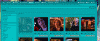
This week's tip is about using a picture that's in the gallery as an avatar.
1. Visit the Media Gallery (click on the Media tab in the toolbar).
2. Select the Category that is called "Avatars" from the list at the left.
3. Browse until you find a picture you want to use.
4. Click on its thumbnail, which will open the image in its own page.
5. Beneath the image name on the left hand side, there is a row of icons. The one at the very left looks like a person. If you mouse over it the tooltip says, "Use Media as Avatar". Click on that button.
6. An overlay will come up asking for you to confirm your choice - click on "Set Avatar".
That's it! 🙂
1. Visit the Media Gallery (click on the Media tab in the toolbar).
2. Select the Category that is called "Avatars" from the list at the left.
3. Browse until you find a picture you want to use.
4. Click on its thumbnail, which will open the image in its own page.
5. Beneath the image name on the left hand side, there is a row of icons. The one at the very left looks like a person. If you mouse over it the tooltip says, "Use Media as Avatar". Click on that button.
6. An overlay will come up asking for you to confirm your choice - click on "Set Avatar".
That's it! 🙂